

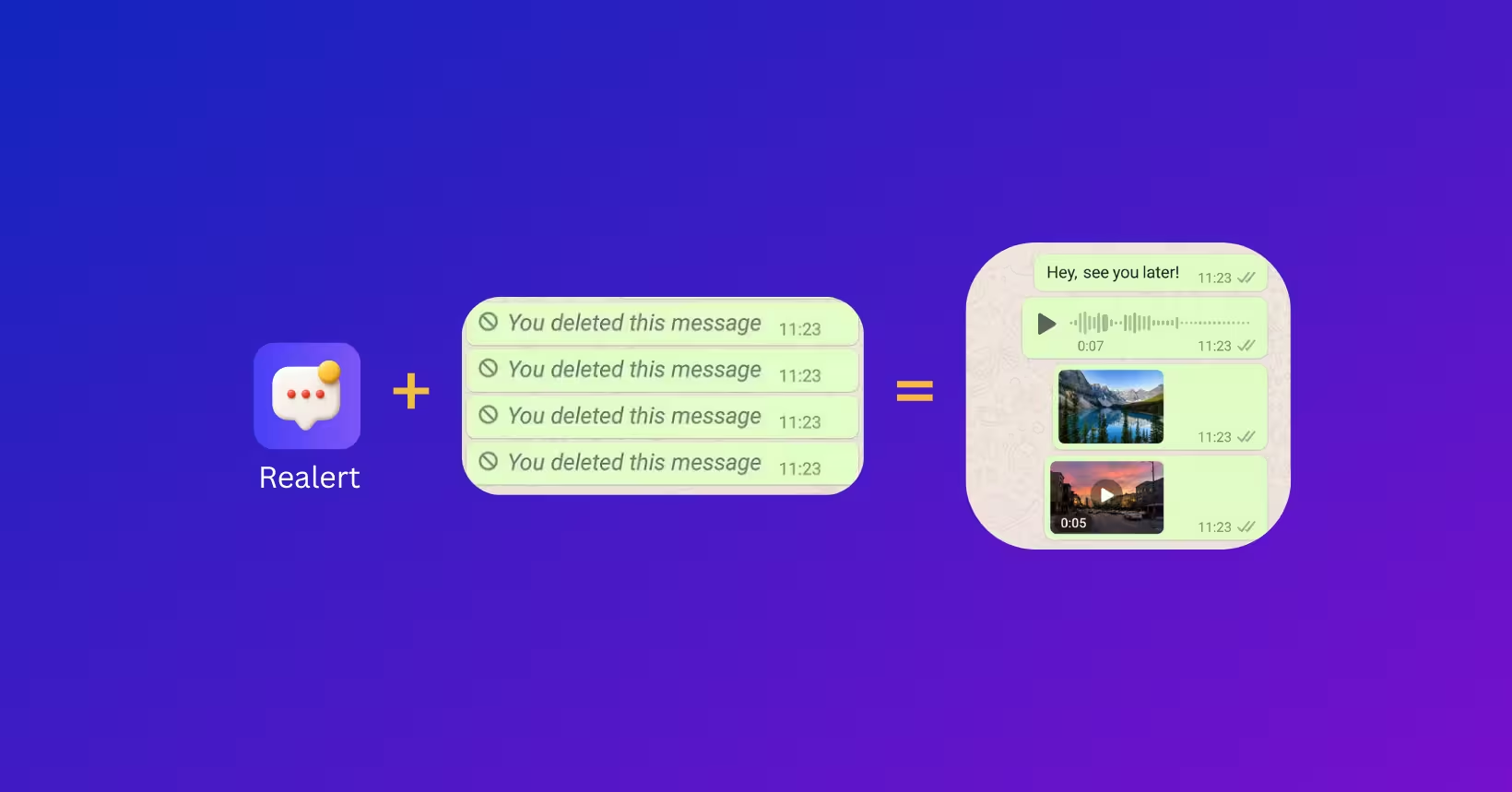

Realert: See Deleted Messages
Engineered exclusively for Android: captures incoming notification previews locally so you can read deleted WhatsApp messages, recover disappeared photos, and listen to deleted voice notes privately with zero cloud syncing.
Few digital experiences trigger as much curiosity and frustration as opening a conversation only to find the ubiquitous prompt: "This message was deleted." Whether it was an urgent piece of work communication, a shared address, an accidental confession, or a temporary photo, WhatsApp's "Delete for Everyone" feature was engineered to give senders complete control over their sent transmissions. But on the Android operating system, the technical reality of how incoming messages are delivered creates viable, legitimate avenues to see deleted WhatsApp messages without risking your account or compromising your privacy.
The "Delete for Everyone" Dilemma: Can You Really Read It?
To understand how to recover deleted WhatsApp messages on Android, we must first dispel common myths propagated by clickbait blogs and scam software. When a sender selects "Delete for Everyone", WhatsApp does not magically rewind time on your device. Instead, the sender's client transmits a secondary revocation protocol payload across WhatsApp's servers to your phone. If your device is online, WhatsApp intercepts this payload and instructs its internal SQLite database to replace the original text with a tombstone entry: "This message was deleted".
Once a message is deleted for everyone, WhatsApp's internal encrypted database strips the plaintext message payload. However, prior to the deletion, Android's system framework already processed the cleartext notification. The secret to recovering deleted WhatsApp messages on Android lies in intercepting that initial notification layer.
How WhatsApp Revocation Works: The Signal Protocol & Local Storage
WhatsApp utilizes the open-source Signal Protocol for end-to-end encryption (E2EE). When Alice sends Bob a text message, the message is encrypted with unique ephemeral session keys that only Bob's device can decrypt. Once Bob's phone receives the ciphertext packet from the push notification server (Firebase Cloud Messaging / FCM), the background WhatsApp service decrypts the content and posts a StatusBarNotification to the Android NotificationManager.
When Alice subsequently taps "Delete for Everyone", her phone sends a RevokeMessage stanza containing the original message ID. When Bob's app receives this stanza, it searches its internal database (msgstore.db), updates the message type to REVOKED, and calls NotificationManager.cancel() or modifies the existing notification to read "This message was deleted". Crucially, any system or utility that cached the notification before that revocation signal arrived retains the original decrypted text.
Method 1: Recover via Android Built-in Notification History (No App Needed)
Starting with Android 11 (and refined through Android 12, 13, 14, 15, and Android 16), Google introduced a native system feature called Notification History. If enabled, your Android device stores an unencrypted system log of all notifications displayed on your screen over the last 24 hours.
- Step 1: Open the Settings app on your Android device.
- Step 2: Navigate to Notifications (or "Apps & notifications" depending on your phone manufacturer).
- Step 3: Tap on "Notification history" (on Samsung Galaxy devices, look under "Advanced settings" -> "Notification history").
- Step 4: Ensure the toggle switch is turned ON. If it was already active, browse the chronologically organized list to find WhatsApp.
- Step 5: Tap the WhatsApp entry to expand the log. You will see the sender's name and the exact text snippet that appeared before the message was revoked.
The Critical Flaws of Native Notification History
While Android's built-in Notification History is a valuable zero-install trick, it comes with severe functional constraints that leave many users stranded:
- Strict 24-Hour Expiration: Android automatically purges all notification history logs after 24 hours. If a message was sent over the weekend or while you were asleep, it vanishes permanently from the system log.
- Text-Only Snippets: Native history only records the brief string displayed in the notification tray (typically truncated to 100 characters). Long messages are cut off with an ellipsis (...).
- Zero Media or Voice Note Recovery: When someone sends a photo, video, or voice recording and deletes it, the notification merely says "Photo" or "Voice message". Android's native history cannot retrieve the actual audio file or visual asset.
- Active Chat Blindspot: If you had the conversation open on your screen when the message was delivered, Android never generates a push notification. Consequently, no entry is logged into Notification History.
- Muted Chats Omission: If you muted an annoying group chat or contact, background notifications are suppressed or silenced, resulting in missing log entries on many manufacturer ROMs.
Method 2: Automatic Message & Media Recovery with Realert (Recommended)
To overcome the critical shortcomings of Android's basic 24-hour log, millions of users rely on dedicated on-device notification managers. Our engineered solution, Realert: See Deleted Messages, was built specifically to solve this exact problem on modern Android devices with uncompromising privacy standards.
Realert leverages Android's official NotificationListenerService API. Once granted permission, Realert listens to incoming notifications from selected messaging platforms (including WhatsApp, WhatsApp Business, Instagram DMs, Telegram, and Signal). The moment an incoming notification is received, Realert creates a persistent, searchable local archive on your device.
When the sender triggers "Delete for Everyone", WhatsApp modifies the notification to "This message was deleted". Realert immediately recognizes this specific revocation event, matches the timestamp and sender ID against its local history, flags the conversation, and highlights the exact content that was removed.
Setting up Realert takes less than 60 seconds on any Android phone running Android 10 through Android 16:
- 1. Download & Install: Get Realert: See Deleted Messages directly from the Google Play Store (https://play.google.com/store/apps/details?id=com.diouane.realert).
- 2. Enable Notification Access: Open the app and toggle Notification Access in Android Settings. This grants Realert read-only permission to incoming alert text.
- 3. Select Target Apps: Choose WhatsApp and WhatsApp Business (as well as any other social messaging platforms you want to protect).
- 4. Exclude from Battery Optimization: Follow the in-app prompt to disable aggressive background battery termination so the Android OS does not kill the listener service when your screen is locked.
- 5. Instant Review: Whenever someone deletes a message, simply launch Realert to review the full unshortened text, timestamp, and sender details.
How Realert Solves WhatsApp Media & Voice Note Deletion Privately
Recovering text messages is straightforward, but what happens when a sender revokes a picture, a video clip, or an audio voice note? By default, when WhatsApp executes a revocation command, it removes the temporary cached file from your device storage (/Android/media/com.whatsapp/WhatsApp/Media/).
If your WhatsApp is configured to auto-download media over Wi-Fi or cellular data, the file reaches your device storage seconds before the sender has time to press "Delete for Everyone". Realert detects the media notification, scans the secure local cache, and creates a protected local copy inside your private app directory before WhatsApp's deletion command can erase it.
- 100% On-Device Architecture: Realert does not run remote cloud servers, sync databases to third-party endpoints, or monetize your personal conversations. All recovered chats and media stay strictly encrypted on your phone's internal storage.
- Read Receipts Bypass: Because you read the saved notification copy inside Realert, you never open the original WhatsApp thread. This allows you to review messages without triggering blue checkmarks (read receipts).
- Granular Control: You can clear your recovered message history at any time with a single tap, or set automatic retention schedules to free up device space.
Method 3: Restoring from Google Drive or Local Database Backups
If a message was received and deleted prior to installing Realert or turning on Notification History, your only remaining option is WhatsApp's backup mechanism. WhatsApp generates automatic cloud backups to Google Drive (usually scheduled at 2:00 AM daily) as well as rolling 7-day local cryptographic snapshots (msgstore-YYYY-MM-DD.1.db.crypt14) in your device's storage.
To restore a deleted message using Google Drive or local backup:
- Verification First: Open WhatsApp -> Settings -> Chats -> Chat backup. Verify the timestamp of the "Last Backup". The message MUST have been received BEFORE this backup was taken, and deleted AFTER the backup occurred. If the backup was taken after the deletion, the message is permanently gone.
- Uninstall WhatsApp: Go to your Android Home Screen or App Drawer, long-press WhatsApp, and select "Uninstall".
- Reinstall from Google Play: Re-download the official WhatsApp Messenger from the Google Play Store.
- Verify Phone Number: Open WhatsApp, enter your phone number, and complete the SMS verification code.
- Tap Restore: When prompted to "Restore your chat history from Google Drive", tap Restore. Allow WhatsApp to rebuild your conversations.
Restoring a prior backup rolls back your entire WhatsApp account to that exact timestamp. Any conversations, incoming photos, or voice notes received BETWEEN the backup time and the moment you reinstall will be permanently erased. Proceed with caution!
Why Modded WhatsApp APKs (GBWhatsApp) Are a Dangerous Trap
When searching online for how to read deleted WhatsApp messages, you will frequently encounter tutorials recommending modified WhatsApp clients such as GBWhatsApp, WhatsApp Plus, FMWhatsApp, or YoWhatsApp. These unofficial APKs advertise built-in "Anti-Delete Messages" switches that prevent the app from executing revocation stanzas.
As software security engineers, we strongly advise against using any modded WhatsApp client. Here is why:
- Permanent Meta Account Bans: WhatsApp's anti-fraud systems actively detect non-standard client signatures. Using modded APKs leads to temporary 24-hour bans followed by permanent, irreversible account terminations.
- Broken End-to-End Encryption: Modified APKs intercept the raw cryptographic keys. Security researchers have repeatedly discovered trojanized backdoors, credential stealers, and remote access trojans (RATs) embedded inside popular modded builds.
- Google Play Protect Violations: Because these APKs are distributed through shady download portals and mediafire links, they bypass Google Play's automated malware scanning, exposing your device to ransomware and spyware.
Recovery Methods Comparison Matrix: Which One Works Best?
To help you choose the right approach for your situation, here is an objective comparison of the available WhatsApp recovery methods on Android:
| Recovery Method | Recovers Text | Recovers Media / Audio | Retention Period | Account Ban Risk | Setup Complexity |
|---|---|---|---|---|---|
| Android Notification History | Yes (Truncated) | No | 24 Hours Only | Zero (Official OS) | Very Simple (Built-in) |
| Realert: See Deleted Messages | Yes (Full Text) | Yes (Photos & Voice Notes) | Indefinite (Customizable) | Zero (Compliant Listener) | Quick (One-Time Setup) |
| Google Drive Backup Restore | Yes (If backed up) | Yes (If backed up) | Limited to Backup Date | Zero (Official WhatsApp) | High (Requires Reinstall) |
| Modded APKs (GBWhatsApp) | Yes | Yes | Continuous | EXTREME (Account Ban) | Dangerous (Sideloading) |
Pro Tips: How to Configure Android So You Never Lose a Message Again
To ensure that 100% of future deleted WhatsApp messages and media files can be recovered seamlessly on your Android phone, apply these three critical configuration settings:
- Enable High-Priority WhatsApp Notifications: Go to WhatsApp -> Settings -> Notifications. Ensure "High priority notifications" is toggled on. This forces Android to display a rich heads-up banner with full text previews even when the screen is locked.
- Turn On Media Auto-Download: In WhatsApp, navigate to Settings -> Storage and data. Under "Media auto-download", enable Photos and Audio when connected to both "Mobile data" and "Wi-Fi". This guarantees media is downloaded before a sender can delete it.
- Whitelist Realert from Battery Optimization: Go to Android Settings -> Apps -> Realert -> Battery. Select "Unrestricted". Modern Android OEM skins (like Samsung One UI, Xiaomi HyperOS, and OnePlus OxygenOS) aggressively kill background services to save battery. Setting Realert to unrestricted ensures zero missed notifications.
Frequently Asked Questions (FAQ)
Can I recover WhatsApp messages that were deleted before I installed a recovery app?
No. Neither Android Notification History nor third-party notification loggers like Realert can retroactively recover messages deleted before they were installed and granted notification permissions. Both tools work prospectively by monitoring incoming notifications in real time. However, if an automatic Google Drive backup occurred while the message was still present, restoring that backup may retrieve it.
Can I listen to deleted WhatsApp voice notes using Realert on Android?
Yes! When a voice note or audio file arrives, WhatsApp downloads it to a local cache directory if media auto-download is enabled. Realert detects the notification, links it to the cached audio recording, and allows you to play the voice note directly inside the app even after the sender taps Delete for Everyone.
Does WhatsApp notify the sender when I read a deleted message?
No. WhatsApp has no mechanism to detect that you viewed a notification log or opened a saved copy inside Realert. Because you are reading local data rather than sending an encrypted acknowledgement packet to WhatsApp's servers, the sender will never know you read the deleted content.
Is it legal and safe to use Realert to view deleted messages on Android?
Yes. Realert operates strictly on your personal Android device using official Google Android APIs (NotificationListenerService). It does not hack WhatsApp servers, modify encrypted network traffic, or violate terms of service. All logged data remains 100% private and stored exclusively on your device.
Why did my notification say "This message was deleted" instead of showing the original text?
This happens if WhatsApp received the revocation signal before your phone's notification tray was viewed or logged. In Realert, both the initial message text and the subsequent deletion event are captured, ensuring you can always read what was written before the revocation arrived.
Experience Realert: See Deleted Messages Today
Tested for Android 10 through Android 15+. Fast, lightweight, and engineered with complete respect for your privacy and battery life.
Install Realert: See Deleted Messages on Google Play ↗